Working with Model Simulation Results
To study the model simulation result in more detail, you need to:
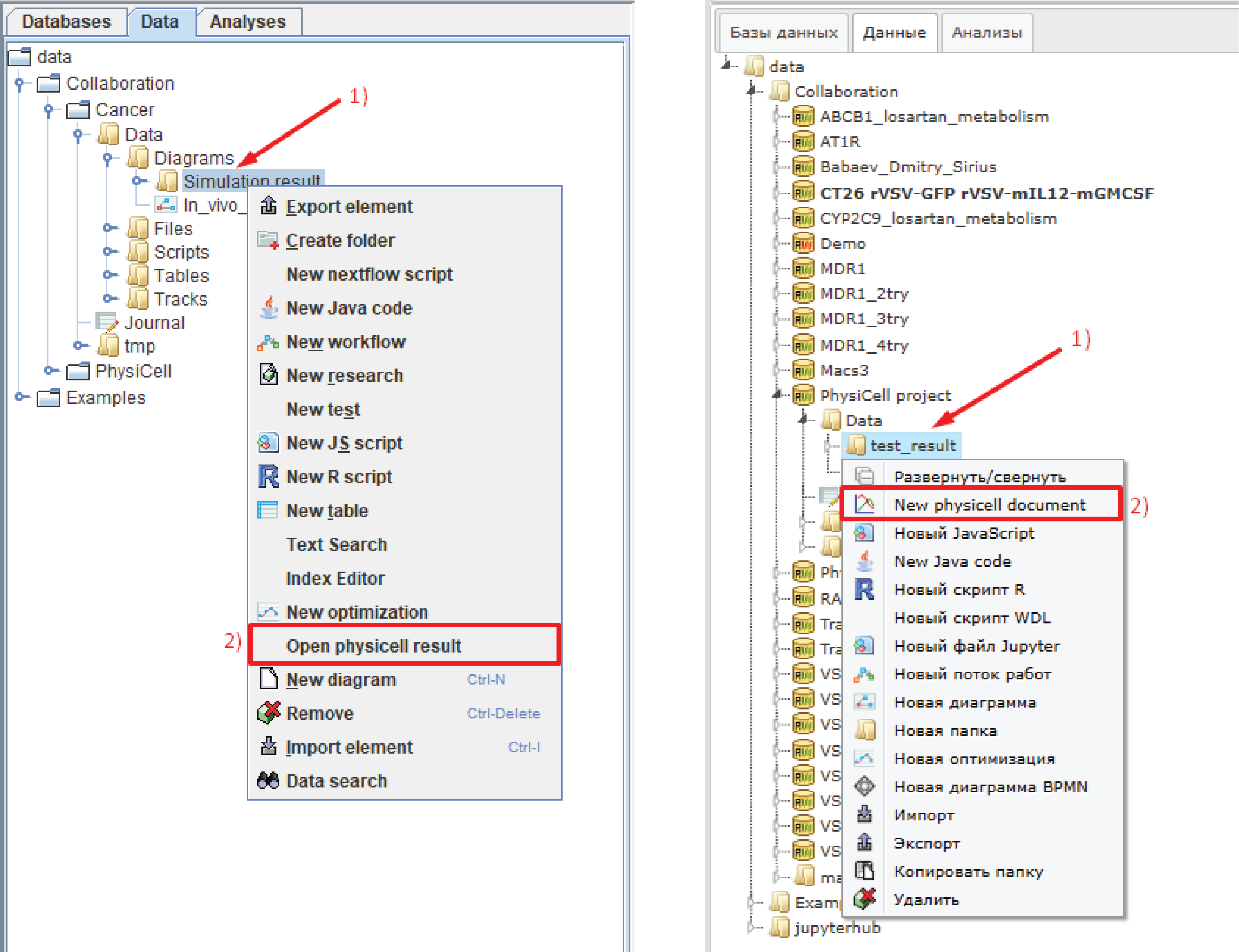
Right-click on the folder with the simulation result (the one in which the files info.txt, log.txt, and model.txt are located).
В раскрывающемся списке нажать ЛКМ на Open physicell result (при работе в локальной версии) или New physicell document (при работе в веб-версии).
Important
Make sure that the Save cells data option was enabled when running the simulation, otherwise you will not be able to open the simulation result via Open physicell result.
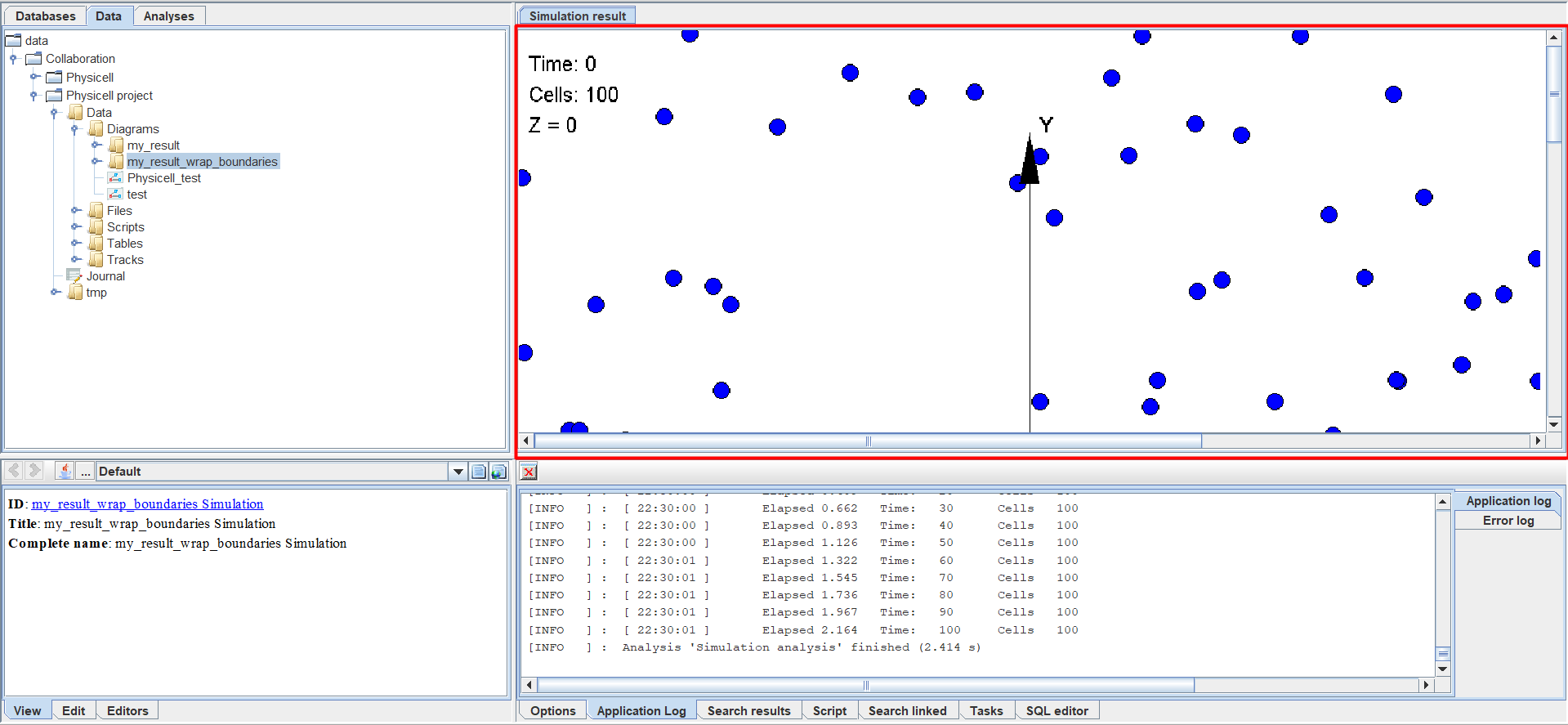
After this, an image of your model will appear in the upper right part of the screen.
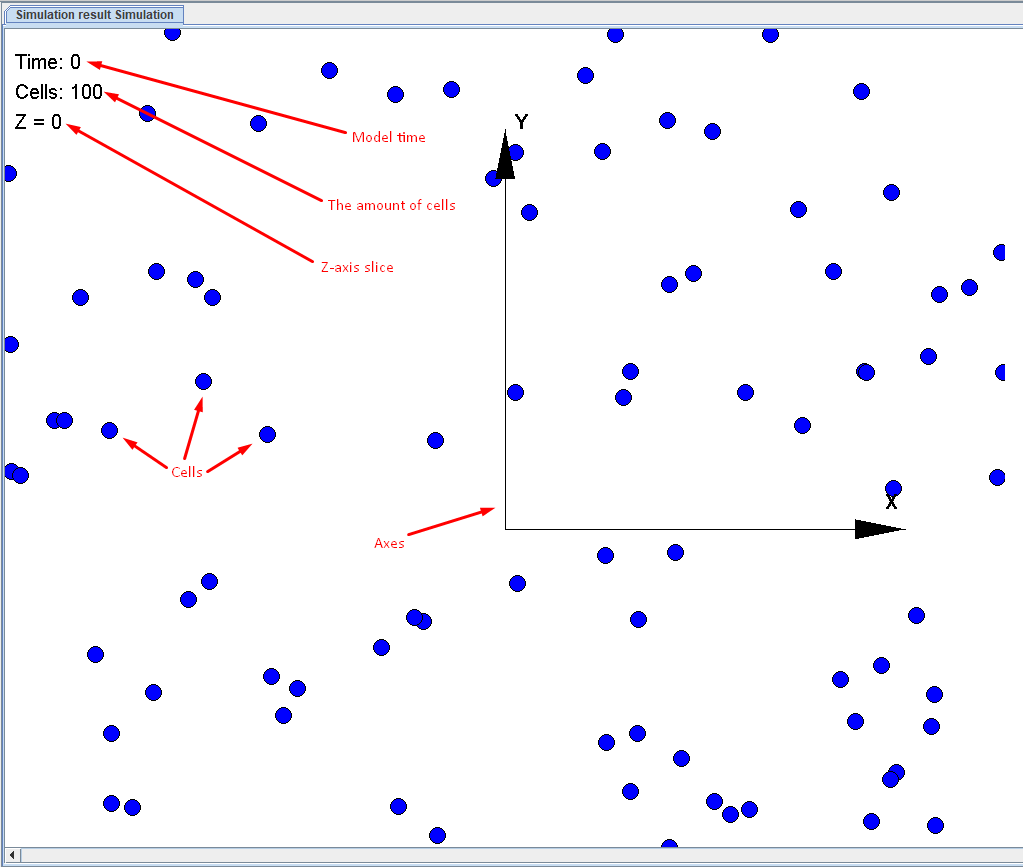
It shows cells, axes, as well as model time, number of cells, and slice along the Z axis.
To view how the model changed during the simulation, you need to click LMB on the Options tab, which is located below.
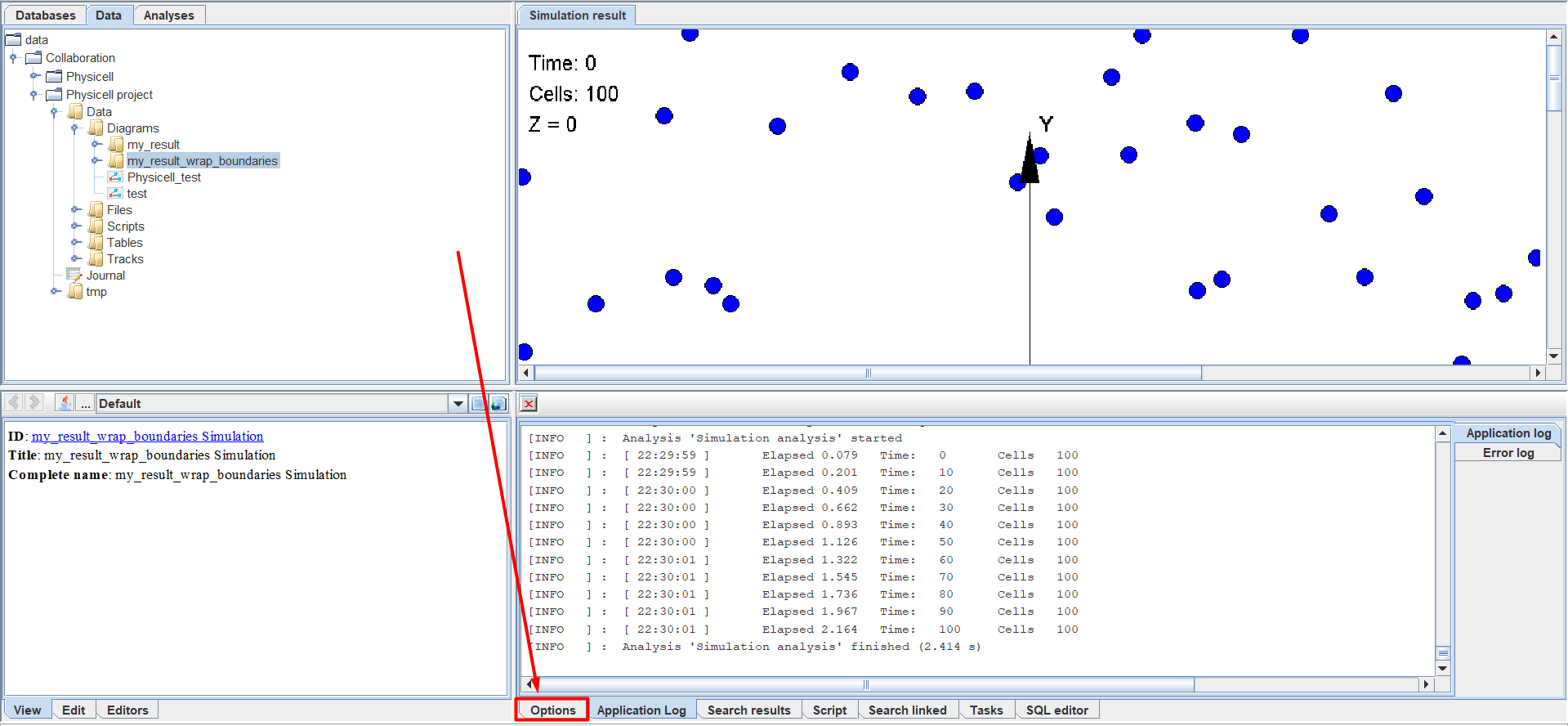
After this, a menu will appear in the lower right part of the screen in which you can configure the viewing of the model simulation.
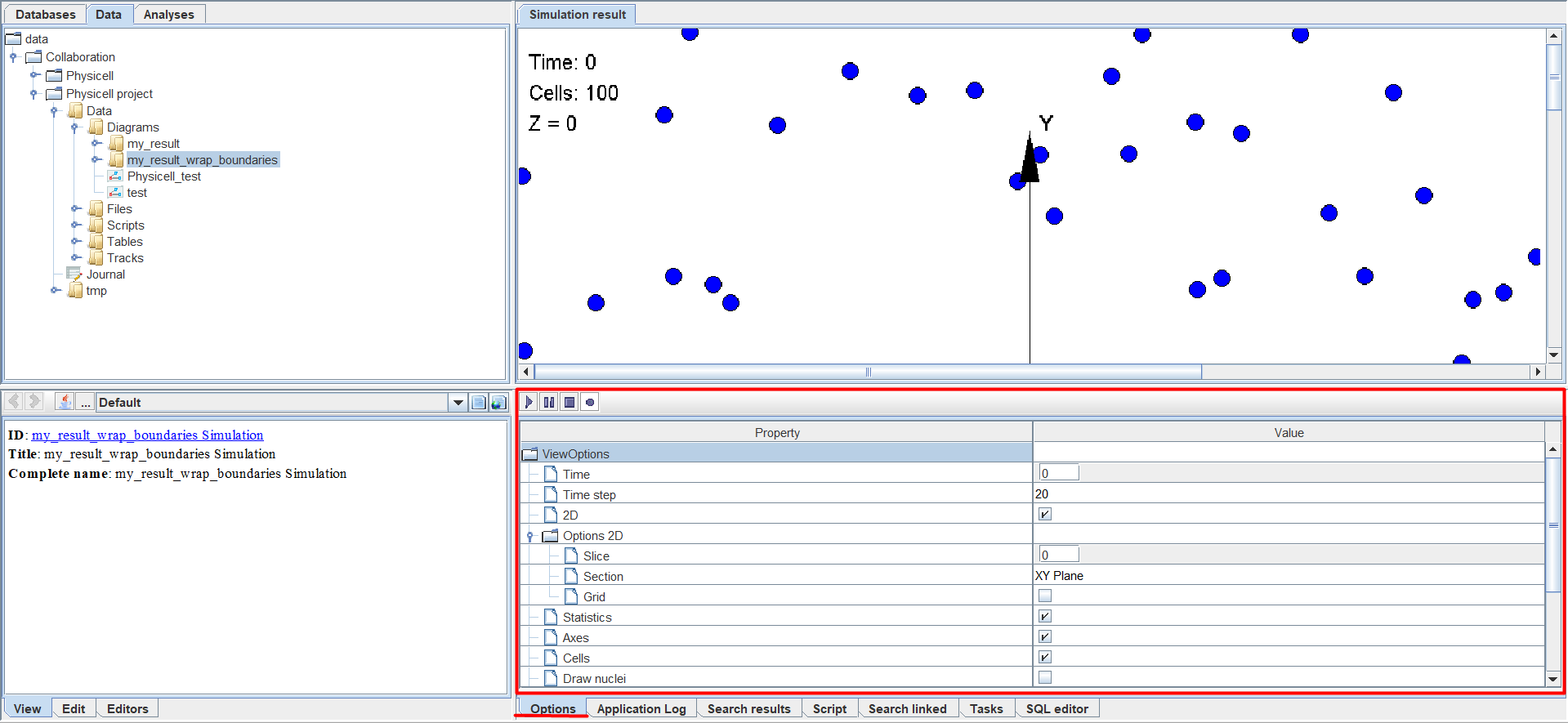
There are 2 parts to this menu:
Buttons for viewing the simulation (A),
Simulation View Settings (B).

Next, let’s look at each of these parts in more detail.