Color schemes
What are color schemes?
Color schemes allow you to configure the rendering of cells of the same type in different colors under different conditions.
To understand in what cases it may be necessary to use color schemes, let’s give an example.
Suppose you are modeling a viral infection of cells.

Cells can be either healthy (containing no virus inside) or infected
(containing the virus).

At the same time, infected cells can contain different amounts of viral particles
(10, 100, 1000, etc.).

In this case, it is convenient to use several color schemes to visualize the simulation results,
making it immediately clear which cells are healthy and which are infected, and to what extent.

For example, healthy cells (0 viral particles) can be displayed in blue, while infected ones
(> 0 viral particles) - in yellow.
Furthermore, depending on the number of viral particles inside a cell, you can render them using
different shades of yellow:

- from 1 to 10 - light yellow,
- from 10 to 100 - yellow,
- from 100 to 1000 - bright yellow,
- > 1000 - dark yellow.

Using such color schemes when viewing the model simulation results allows for
an immediate visual assessment of the intensity of the virus spread within the cells.
Setting color schemes in the model
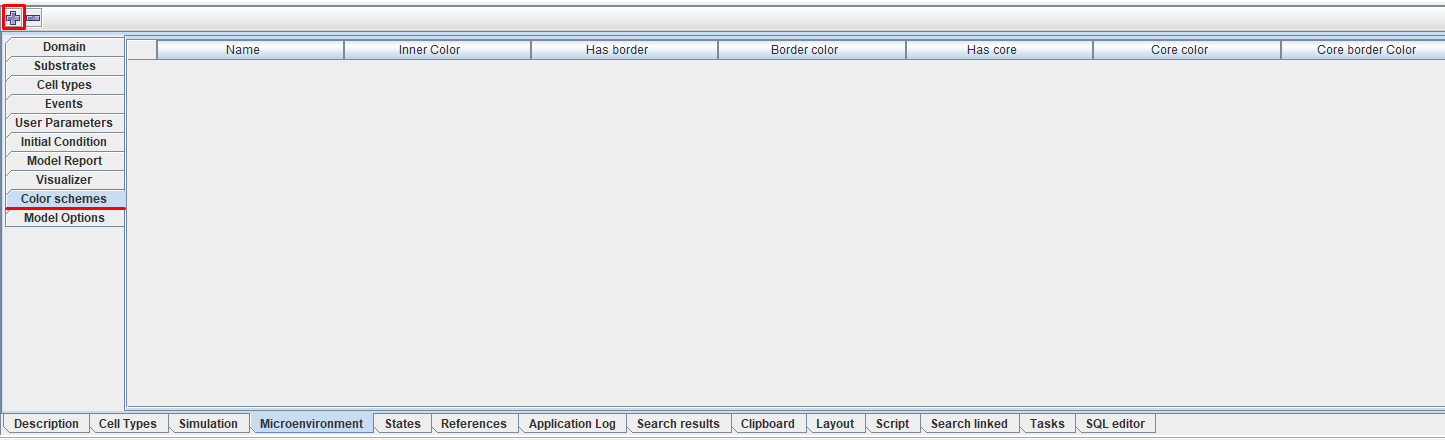
After clicking on the Color schemes tab on the property panel on the right, you will see a menu in which, by clicking LMB on the  icon, you can add a new color scheme.
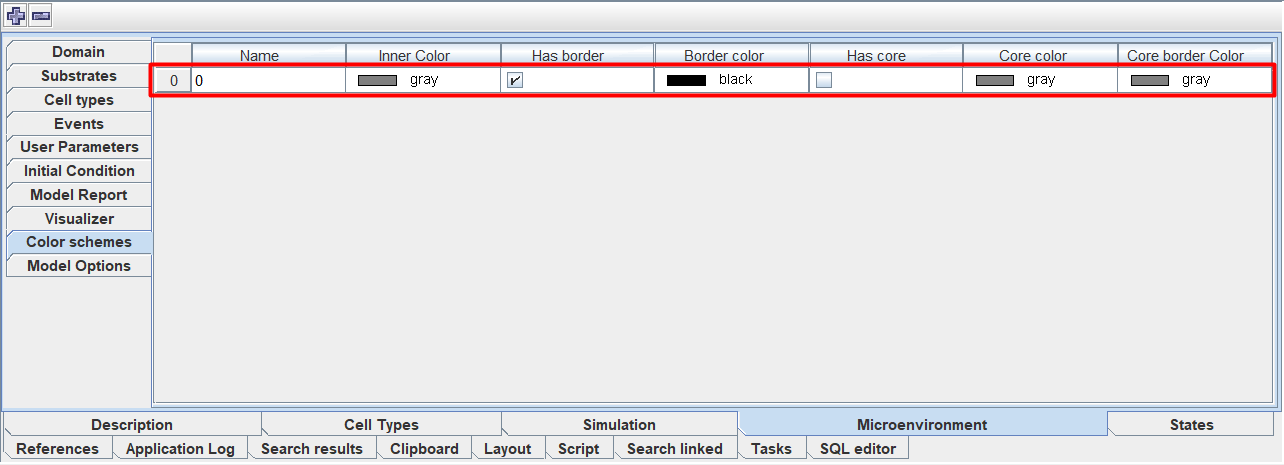
After this you will have a line corresponding to one color scheme.
This way you can add as many color schemes as you like.
In each color scheme, you can configure the following parameters:
Name: name of the color scheme.
Inner Color: the color with which the internal contents of the cell are drawn.
Has border: check ☑ if you want to draw the border of the cell.
Border color: the color with which the cell border is drawn (editable only if the "Has border" property is selected).
Has core: check ☑ if you want to draw the core in a cell.
Core color: the color with which the internal contents of the cell core are drawn (editable only if the "Has core" property is selected).
Core border Color: the color with which the border of the cell core is drawn (editable only if the "Has core" property is selected).
To set the value of any parameter, you need to click LMB in the row cell under the corresponding heading and enter your own value, mark ☑, or select the desired color from the drop-down list.
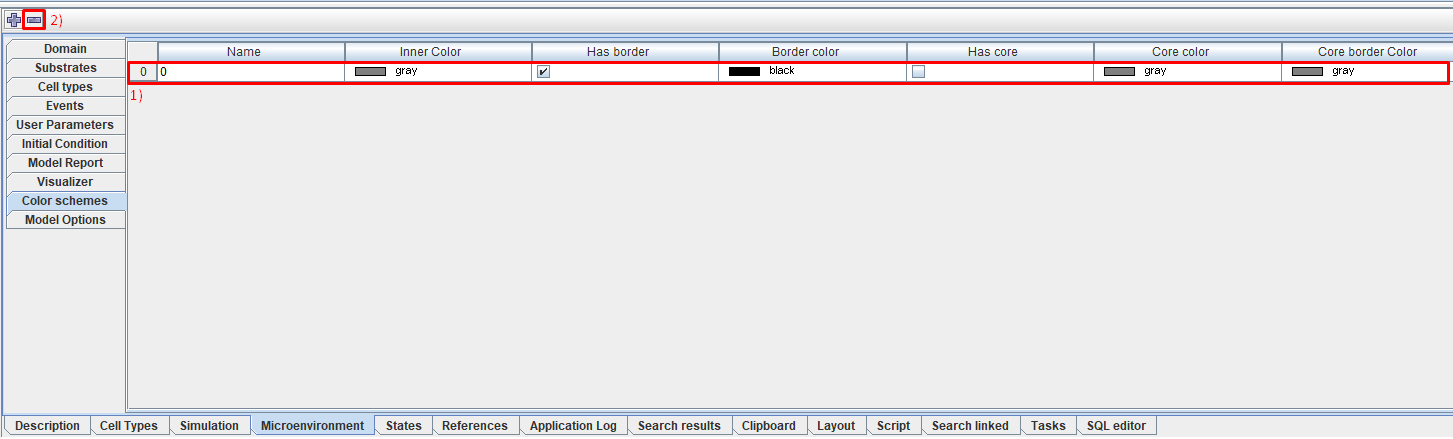
To remove a color scheme:
Click LMB on the line corresponding to a specific color scheme.
Click LMB on the
 icon.
icon.
Important
Color schemes are used in the Visualizer tab.