Initial arrangement of cells (Initial Condition)
After clicking on the Initial Condition tab on the property panel on the right, you will see a menu in which you need to put ☑ next to  Custom condition, if you want to set a specific initial arrangement of cells.
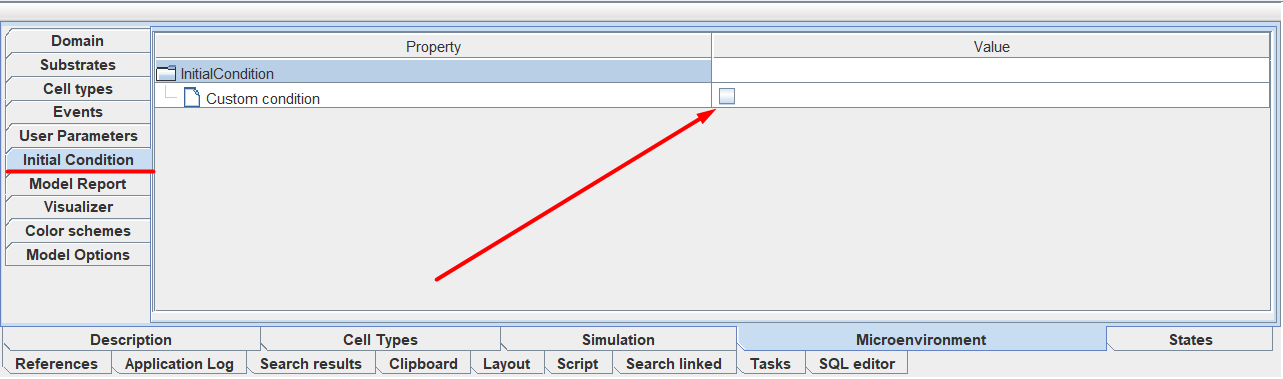
If you do not want to configure a specific initial arrangement of cells (you want to leave the arrangement random), then leave the Initial Condition tab unchanged.
When you select ☑ opposite Custom condition you will see a menu in which you can configure 2 parameters:
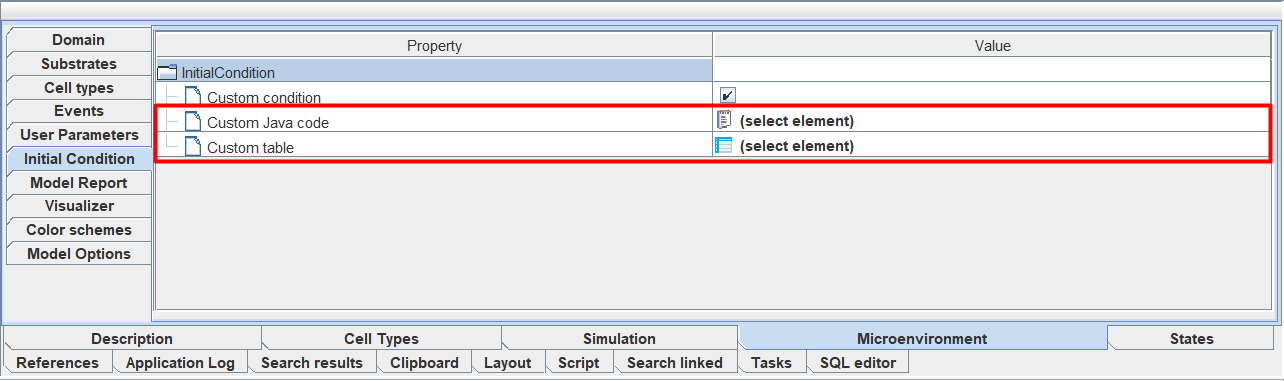
- Custom Java code: путь до Java-кода в репозитории, описывающего начальное расположение клеток в модели. Шаблон такого файла можно посмотреть здесь.
- Custom table: path to a table in the repository that describes the initial location of cells in the model.
An example of such a table is presented below:
ID |
x |
y |
z |
type |
|---|---|---|---|---|
1 |
1163 |
-15.49167 |
-344.40643 |
0.0 |
2 |
58 |
-75.16966 |
-341.14908 |
0.0 |
3 |
1271 |
17.53487 |
-340.547 |
0.0 |
4 |
146 |
-26.52981 |
-339.61637 |
0.0 |
5 |
79 |
-12.17254 |
-338.07241 |
0.0 |
▼ table continues ▼
Where:
ID: уникальный идентификатор клетки.
x: координата клетки по оси x.
y: координата клетки по оси y.
z: координата клетки по оси z.
type: код типа, к которому относится данная клетка.
To specify the path to the Java code or table, you need to click LMB on  (select element) or
  (select element), respectively, and in the window that appears, select the desired file in the repository.
Warning
You cannot specify both Java code and a table at the same time; you need to choose one.