Saving model images during simulation (Save images)
If the option  Save images is enabled, then after the simulation is completed, in the results directory you will have a folder called Image.
In this folder, for each substrate of the model there will be a separate folder with a name corresponding to the name of the substrate.
Each such folder contains images with the name Figure_[model time]. The model time value indicated in the name indicates how many time units after the start of the simulation this image was generated.
Note
Images in one folder only show the substrate with the same name as that folder name. For example, if the model has two substrates, “A” and “B”, then after the simulation ends, the Image/A folder will contain images that show only substrate “A”, and the Image/B folder will contain only substrate “B”.
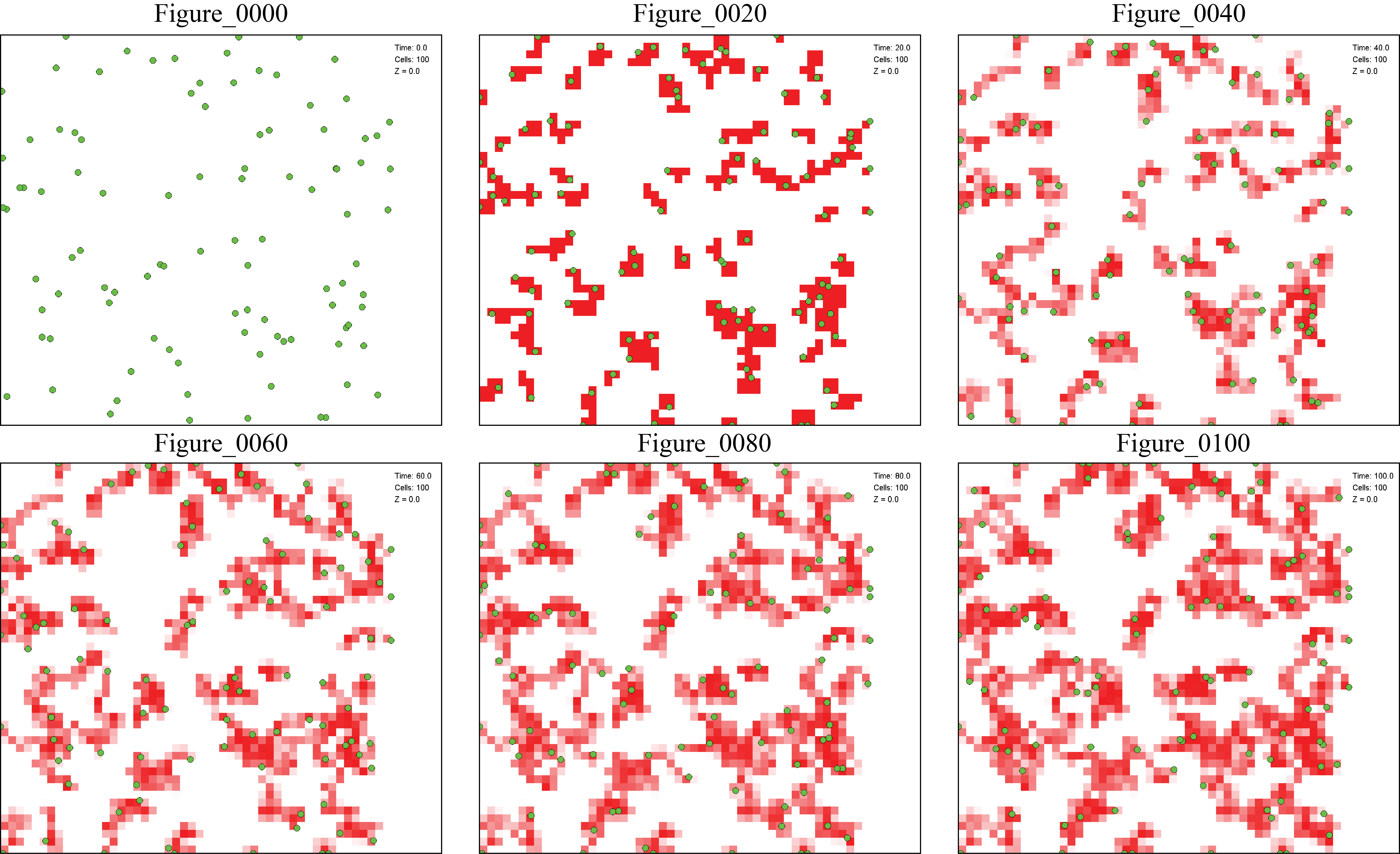
In the images, cells are drawn in the color you set for them, and substrates are always depicted as red squares.
The more substrate there is in a certain space cell of the environment, the brighter shade of red it will be painted (drawn relative to the space cell with the maximum substrate content at the moment).
The number of images in each folder will depend on the values of the Max Time and Image interval parameters (see example below).
Image interval = 20 (images are saved every 20 model time units).
Max Time = 100 (simulation lasts for 100 model time units).

Images in the Image/Substrate_name folder:
- Figure_0000,
- Figure_0020,
- Figure_0040,
- Figure_0060,
- Figure_0080,
- Figure_0100.
An example of such images is presented below.
Note
The upper right part of each figure indicates how many time units after the start of the simulation this image was generated (Time), how many cells are in the model (Cells), and along which slice of external space along the Z axis this image was taken (Z).