Setting the colors of chart elements
To change the designation of any element on the diagram (cell type, substrate, secretion, etc.), you need:
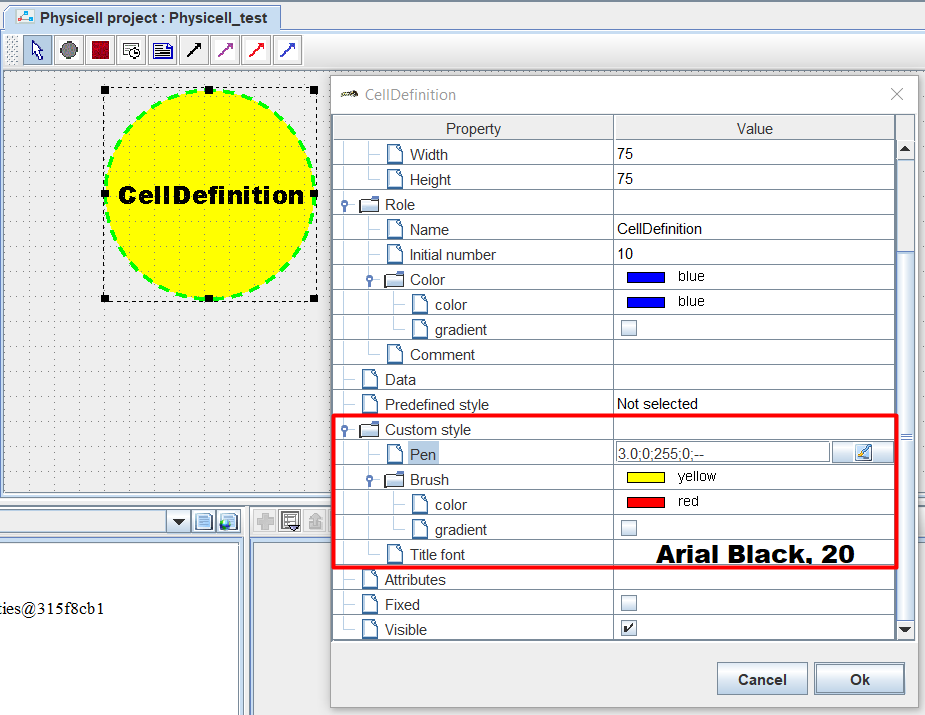
Go to element editing mode (RMB ⭢ Edit).
Opposite the field
 Predefined style select Not selected from the drop-down list.
Expand the Custom style tab that appears below.
Set the appropriate settings (color, stroke, font size and type).
Click Ok.
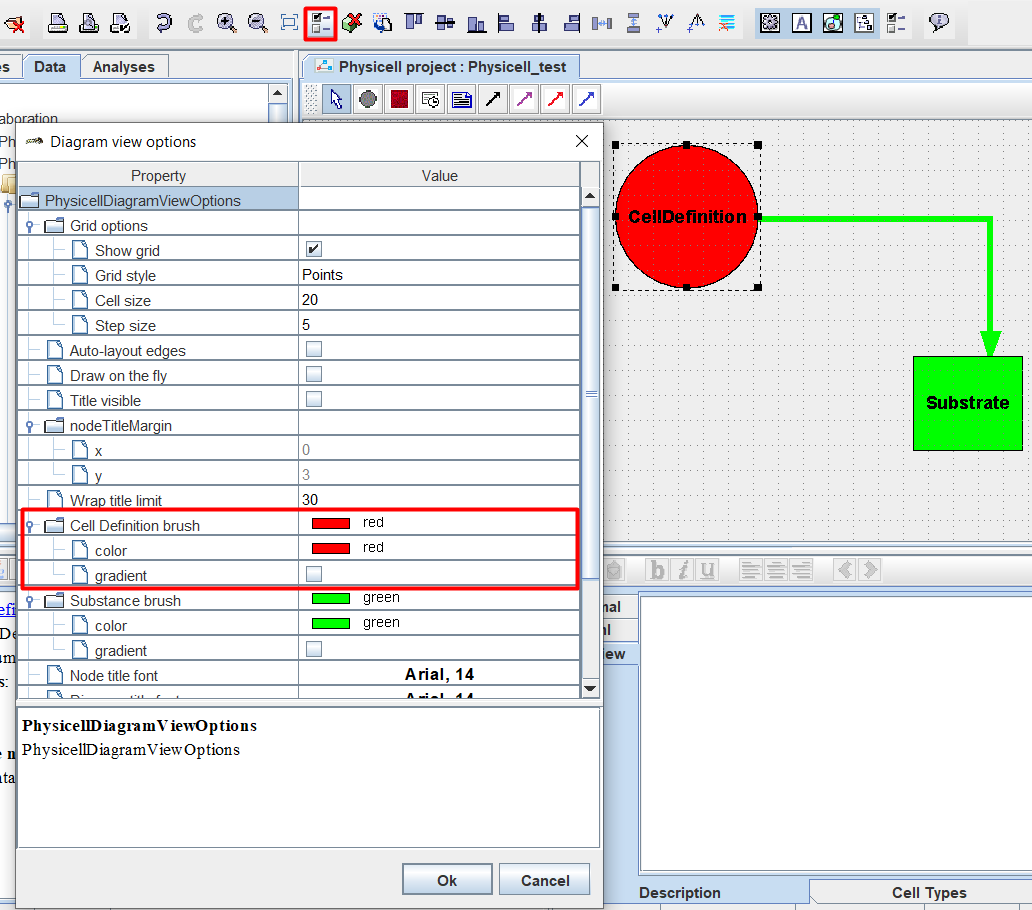
To change the designation at once for all elements of a given type on the diagram (all cell types, all substrates, all secretions, etc.), you need:
Click LMB on the icon
 Open diagram view options dialog on the top toolbar.
Expand the tab of the desired element (Cell Definition brush, Substrate brush, Secretion edge pen, etc.).
Set the appropriate settings.
Click Ok.